🏗 Structural Integrity – Check Your Base Stability
Are you unsure whether part of your base might collapse because of poor structural support?
You can now check the game's Structural Integrity directly in-game.
━━━━━━━━━━━━━━━━━━━━
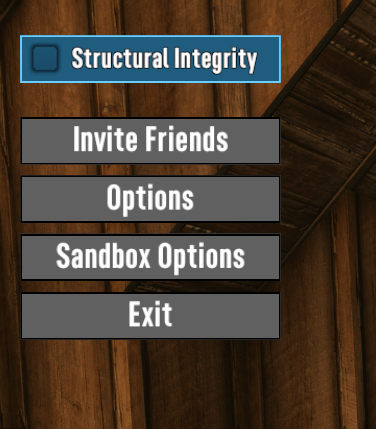
🔧 How to Enable Structural Integrity
- Press ESC while in-game.
- Look at the top-left corner of the menu.
- Find the Structural Integrity option.
- Toggle it ON.
Your nearby blocks will then be displayed using different colors depending on their structural support.
━━━━━━━━━━━━━━━━━━━━
🎨 What Do the Colors Mean?
- 🟢 Green – Strong Support
The block is very well supported. These blocks are normally close to solid ground or connected through strong structural support.
- 🟡 Yellow – Moderate Load
The block is still supported, but more of its structural capacity is being used.
- 🟠 Orange – Approaching the Limit
The structure is becoming heavily loaded. Be careful when extending farther or adding additional weight.
- 🔴 Red – Critical Support
The block is at or extremely close to its structural limit. Adding more blocks or additional weight may cause part of the structure to collapse.
━━━━━━━━━━━━━━━━━━━━
⚠ Important
These colors do not represent block health or durability.
They represent the game's structural stability calculation and show how much support the structure currently has.
Different block materials, block mass, support locations, and the distance from structural supports can all affect the result.
If you are building large roofs, bridges, towers, suspended floors, or other complicated structures, checking Structural Integrity before expanding can help prevent unexpected collapses.